
Magileads is a platform that allows you to automate and optimize your prospecting processes.
One of its advanced features allows this database to be segmented via custom filters in order to target the most relevant prospects.
Once these filters are configured, you may want to share the results with your colleagues, partners, or other Magileads user accounts. This article explores in detail how to do this effectively.
Why share filter results in Magileads?
1 – Simplified collaboration
Sharing filters allows teams to work together on consistent data, without having to manually recreate the same filters across multiple accounts.
2 – Time saving
Rather than downloading data and sending it by email or via other tools, direct sharing ensures instant and secure transmission.
3 – Strategic Alignment
Sharing targeted results ensures that all parties involved are working on leads with the same potential, thus optimizing sales efforts.
Step 1: Create a filter in Magileads
Before sharing a filter, you must first create one. Here's how:
- Access your Magileads account.
Log in and go to the Prospect Database . - Configure your search criteria
Use the filtering options available, such as:- Business sector
- Geographic location
- Company size
- Function of contacts
- Lead maturity level
- Save your filter.
Once you are satisfied with the results, click Save filter . Give the filter a descriptive name to make it easy to share later.
Step 2: Share the filter results
Option 1: Direct sharing between Magileads accounts
Magileads offers a feature for sharing a filter or its results. Here's how:
- Access the saved filter.
Go to the Saved Filters and select the one you want to share. - Choose the “Share” option.
Once the filter is open, click on the share icon. - Enter the recipient's information
- Enter the recipient's Magileads account email address or username.
- Define access rights: read only or edit allowed .
- Send the share.
Confirm by clicking Share . The recipient will receive a notification in their account with direct access to the filter.
READ ALSO: Magileads app features
Option 2: Manual export and sharing of results
If you prefer to share the results without directly involving Magileads:
- Export the data
- Click on Export results from the filter interface.
- Choose the desired format (CSV, Excel, etc.).
- Share via a third-party platform.
Send the exported file by email, via a shared drive, or any other collaborative tool (Google Drive, Dropbox, etc.). - Re-import possible:
The recipient can re-import this data into their Magileads account for use.
Step 3: Optimize sharing for collaboration
1 – Add comments or annotations
Before sharing, you can include notes explaining the context or purpose of the filter. This can be done directly in Magileads or in an attached file.
2 – Synchronization with other tools
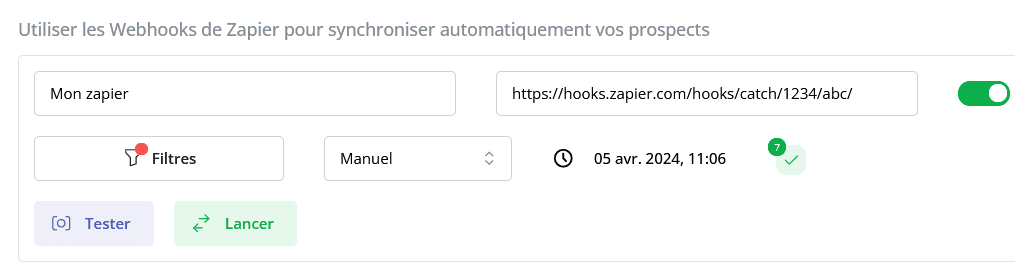
Magileads allows integrations with tools like Zapier to automate the transfer of results. For example:
- Automatic synchronization of filtered leads to a common CRM (HubSpot, Salesforce).
- Notification to a user or team when a new filter is shared.
3 – Securing shared data
Ensure that you only share results with trusted users or partners to prevent data leaks. Use the access control features built into Magileads to restrict access as needed.
Key benefits of sharing filters in Magileads
- Centralization of efforts : All teams work on the same database , reducing duplication.
- Flexibility : Shared filters can be modified and refined based on team feedback.
- Transparency : Each user sees in real time the changes or updates applied to the shared filters.
- Speed : Data is available immediately, without going through tedious manual processes.
Concrete examples of use
Case 1: Inter-team collaboration
A marketing manager creates a filter targeting companies with more than 500 employees in the technology sector. He shares this filter with the sales team so they can launch email campaigns.
Case 2: Partnership with a distributor
An agency uses Magileads to identify leads, then shares the results with a local distributor who takes care of making contact.
Case 3: Analysis by an external consultant
A consultant specializing in B2B prospecting can access shared filters to provide strategic recommendations or refine criteria.
—————————
prospecting automation software
Try Magileads free for 14 days. Click here .
Or book a demo to see how it works. Click here .